Social Connectors
Wire up Twitter, Discord and Telegram so social quests can verify: handles, server IDs, invite links and the shared @OnsendBot.
Social connectors are the quest types that check whether an end user did something on Twitter / X, Discord or Telegram: follow an account, join a server, like a tweet, sit in a group. You add them as quests inside a campaign; this page covers what each platform needs from you and the gotchas that trip people up.
No API keys to manage
You don't paste any Twitter / Discord / Telegram API keys. Onsend runs the verification providers centrally. You just provide the target (a handle, a server ID, an invite link) and Onsend checks completion on the user's behalf.
Connectors live inside quests. Create the quest first, pick the connector, then fill in its config. See Campaigns & Quests for the quest lifecycle.
Twitter / X
Follow, post, like, retweet, quote and reply quests against a handle or a specific tweet.
Discord
Join-server and has-role quests against a server (guild) ID.
Telegram
Join-group and join-channel quests, verified by the shared @OnsendBot.
Twitter / X
Onsend ships six Twitter quest types. All of them target either an account (by handle) or a specific tweet (by URL):
| Connector | What it verifies | Admin provides |
|---|---|---|
twitter_follow | User follows your account | Handle |
twitter_post | User posted a tweet matching your criteria | Hashtag / mention / keywords |
twitter_like | User liked a specific tweet | Tweet URL |
twitter_retweet | User retweeted a specific tweet | Tweet URL |
twitter_quote | User quote-tweeted a specific tweet | Original tweet URL |
twitter_reply | User replied to a specific tweet | Parent tweet URL |
Configure the target
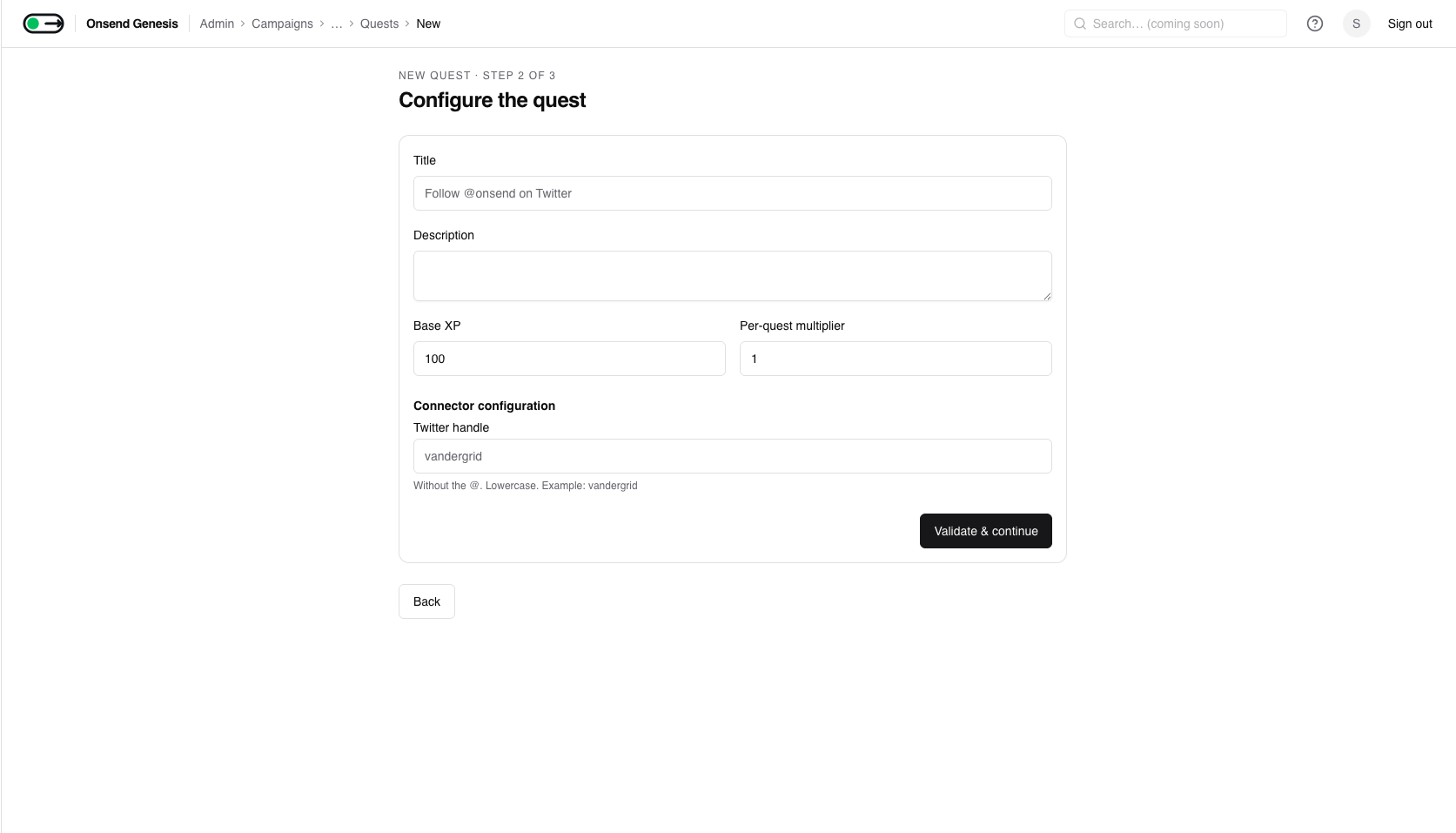
For a follow quest, enter the Twitter handle without the @. For the
tweet-based quests (like / retweet / quote / reply), paste the full tweet
URL. Onsend parses the tweet ID out of it automatically, so you never type
an ID by hand.
Add optional content criteria
twitter_post, twitter_quote and twitter_reply accept match criteria so the
user's tweet has to actually mention you (not just be any tweet):
- Required hashtag: must start with
#(e.g.#onsend). - Required mention: an
@handlethe tweet must mention (twitter_post). - Required keywords: one keyword per line; all must appear.
- Minimum length: reject tweets shorter than N characters.
For twitter_post at least one criterion (hashtag, mention or keywords) is
required, otherwise any tweet would pass.
Handles must be lowercase, no @
The handle field is validated as lowercase only. Enter vandergrid, not
@Vandergrid or Vandergrid. A handle with uppercase letters or a leading
@ is rejected at save time. (Twitter handles are case-insensitive in
practice; Onsend normalises to lowercase so matching is consistent.)
Discord
Two Discord quest types. Both are keyed on your server's guild ID (a numeric "snowflake", 17–20 digits):
| Connector | What it verifies | Admin provides |
|---|---|---|
discord_join | User is a member of your server | Guild ID (+ invite link) |
discord_role | User holds a specific role in your server | Guild ID + Role ID |
The Onsend bot must be in your server
Membership and role checks are done over the Discord REST API by the shared Onsend bot, so the bot has to be present in the server you're verifying against. Add it once and both quest types work.
Find your guild ID
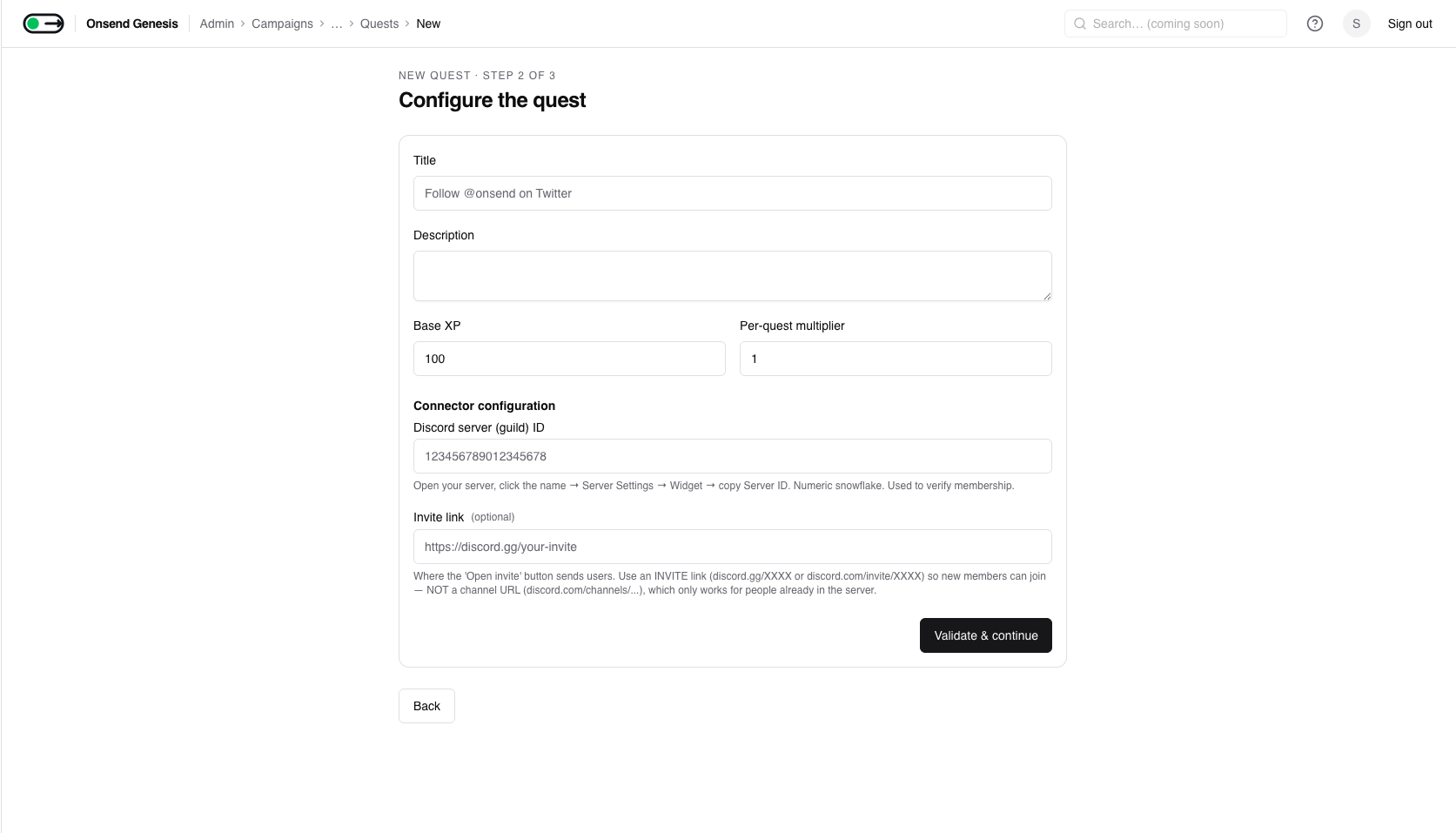
In Discord, click your server name → Server Settings → Widget and copy the
Server ID. It's a numeric snowflake like 123456789012345678. This is the
guildId field on both Discord connectors and it's what drives the actual
membership / role check.
Add the invite link (join quest)
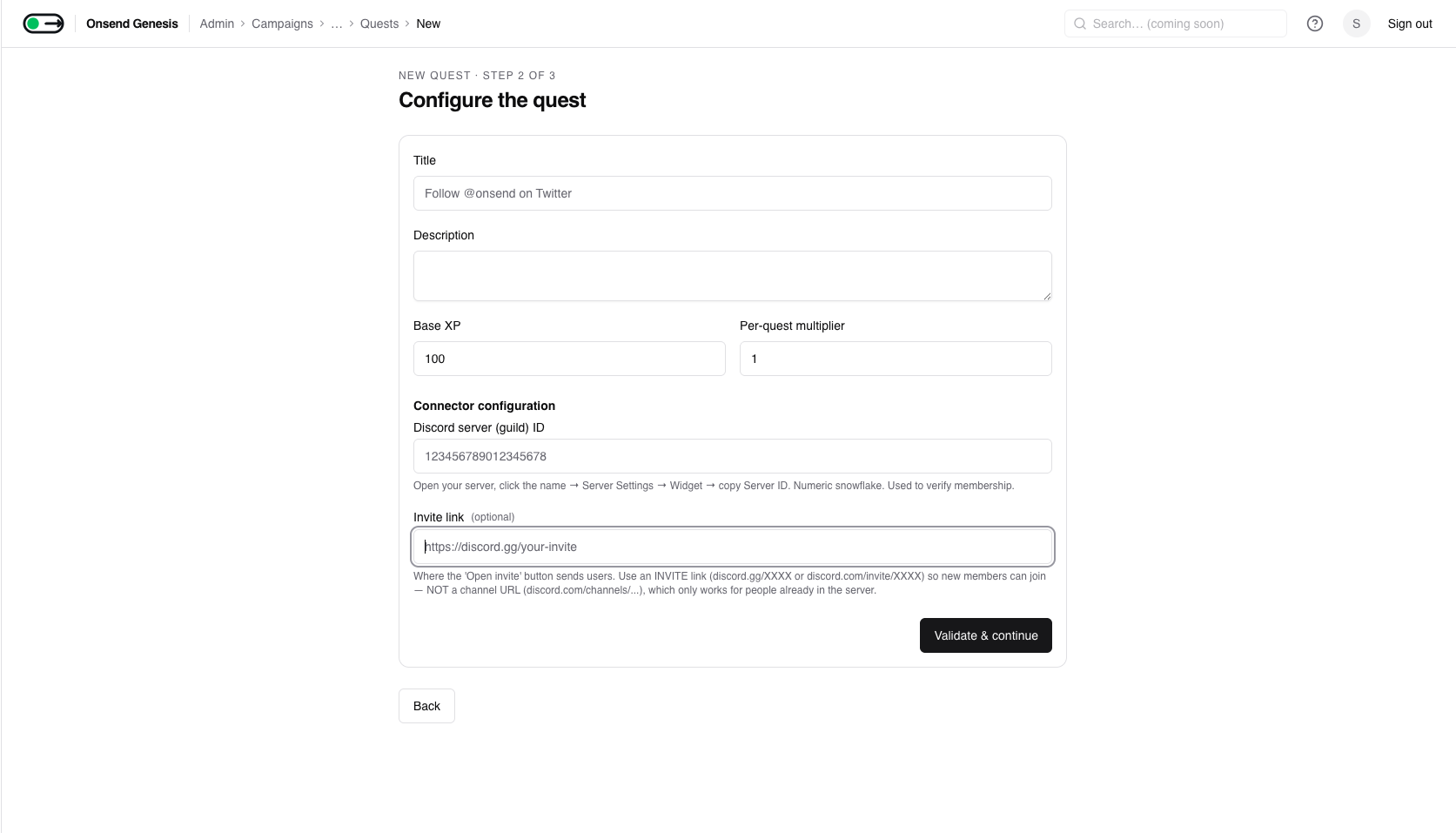
A discord_join quest has an Invite link field. This is where the "Open
invite" button on the quest sends users so they can join.
Configure the role (role quest)
A discord_role quest also needs the Role ID. Enable Developer Mode in
Discord, then Server Settings → Roles → right-click the role → Copy Role ID.
Like the guild ID, it's a numeric snowflake.
Use an INVITE link, not a channel URL
The Discord Invite link field must be a real invite, such as https://discord.gg/XXXX
or https://discord.com/invite/XXXX. A channel URL like
https://discord.com/channels/<guild>/<channel> is rejected: a channel URL
only opens for people already in the server, so new users couldn't actually
join. Generate a fresh invite from your server (prefer one that doesn't
expire) and paste that.
Invite link is optional, guild ID is not
The invite link only powers the "Open invite" button. Membership is verified purely from the guild ID. You can leave the invite blank, but then users have no link to join from, so for a join quest you almost always want it set.
Telegram
Telegram has two quest types, join a group and join a channel, both verified by the shared @OnsendBot. There are two distinct setup sides:
- Admin side: add the Onsend bot to the group / channel you want to verify (a one-time binding).
- End-user side: each participant links their own Telegram account to their Onsend profile so the bot can recognise them.
| Connector | What it verifies | Admin provides |
|---|---|---|
telegram_join_group | User is in your group | Group chat ID (+ optional public handle) |
telegram_join_channel | User is in your channel | Channel chat ID (+ optional public handle) |
Bind the bot to your group or channel
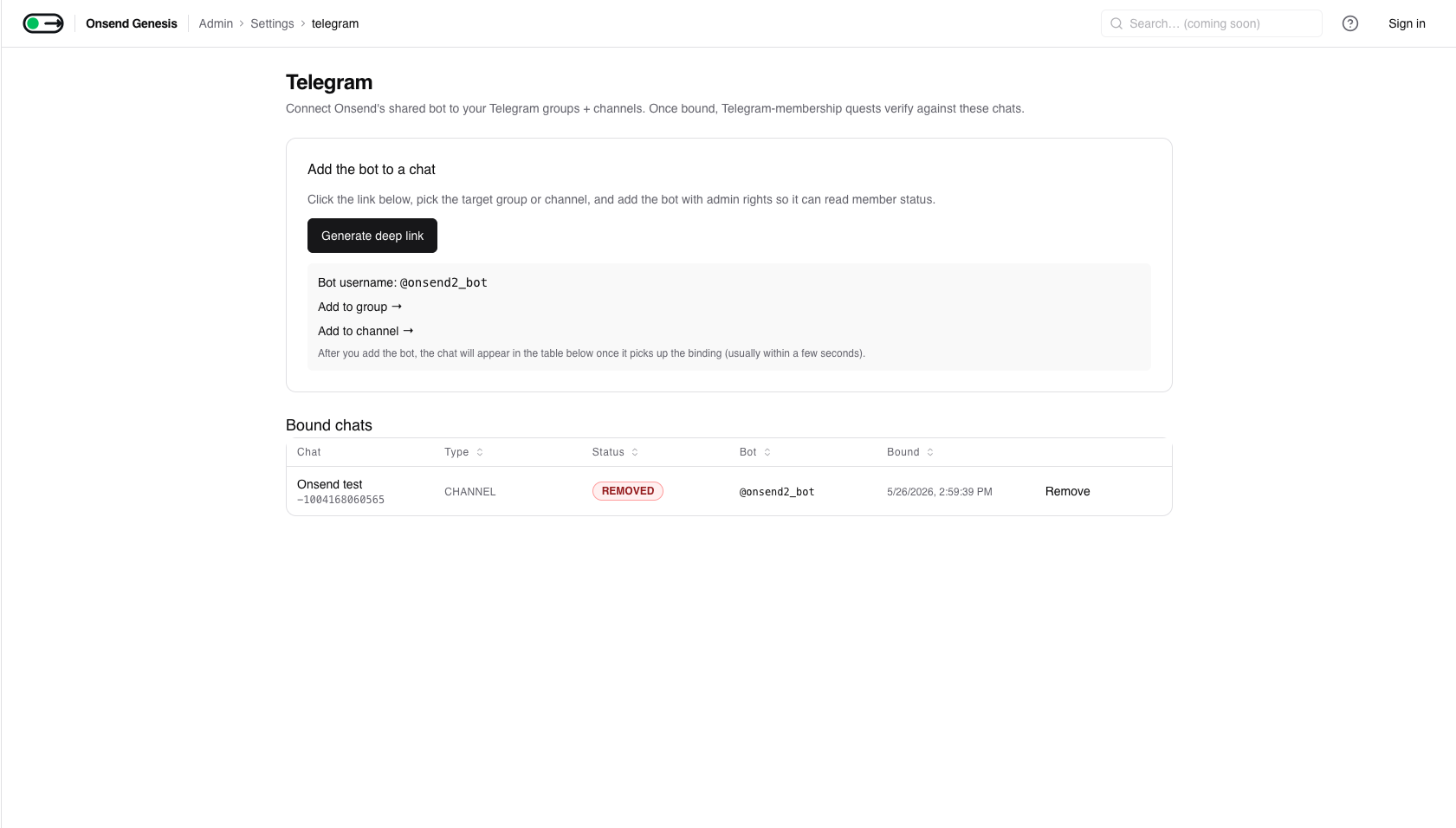
From the admin Telegram settings, generate the bot-add deep link. It looks
like https://t.me/OnsendBot?startgroup=<your-project-id> (with a
?startchannel=… variant for channels). Open that link, pick the target chat,
and add @OnsendBot.
When the bot lands in the chat it records a binding for your project, and the admin dashboard picks it up on its next refresh.
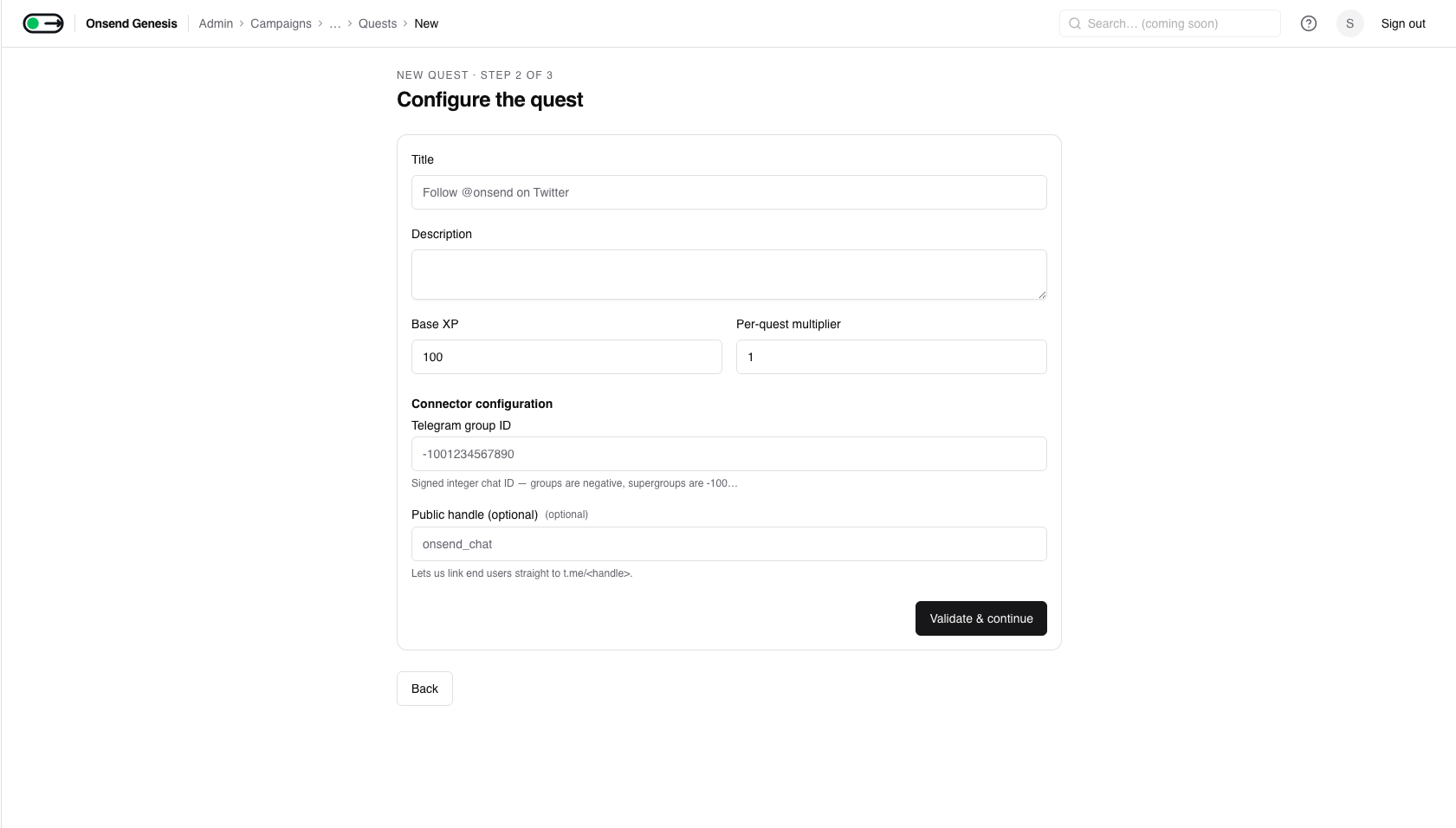
Enter the chat ID on the quest
The connector verifies against the chat's ID, not its handle. Telegram chat
IDs are signed integers: groups are negative, while supergroups and channels
start with -100… (e.g. -1001234567890).
You can also supply an optional public handle (e.g. onsend_chat) so Onsend
can link end users straight to t.me/<handle>, which is handy when the chat is public.
End users link their Telegram account
Group / channel membership can only be checked if Onsend knows which Telegram
user maps to which Onsend identity. End users do this themselves from their
profile: they open a one-time link that runs /start verify_<code> in a
private chat with the bot, which connects their Telegram account to their
profile. Until a user links, their Telegram quests can't verify.
The bot must be an admin to read membership
@OnsendBot needs admin rights in the group / channel to read membership. If it's added as a plain member, the binding is flagged permission-insufficient and verification won't work, so promote it to admin. Removing the bot flips the binding to removed and breaks the quest.
Bindings are health-checked automatically
An hourly health check re-verifies every bound chat. If the bot loses access the binding flips to removed; if access is restored it flips back to connected. You'll see the current status next to each bound chat in the admin Telegram settings.
One shared bot in V1.5
Onsend uses a single shared @OnsendBot across all projects today, using your project ID as the binding token. Per-project bot accounts with unguessable tokens are planned for a later release.
Tips
- Lowercase Twitter handles, no
@. This is the single most common save-time rejection. - Discord: invite link, never a channel URL. If new members can't join from the button, you pasted a channel link.
- Telegram needs both sides done. Binding the bot isn't enough. Remind participants to link their Telegram account from their profile, or the quest silently can't verify them.
- Use public handles where you can. For public Telegram chats, set the handle
so users get a one-click
t.me/<handle>link.