Claim Pages & Airdrops
Airdrops: create a claim campaign, load allocations, publish the Merkle root, deploy your distributor, and run the end-user claim flow.
Claim Pages turn a list of wallets and amounts into a branded, gated
token-distribution page on your campaign site. You upload allocations (who
gets what), Onsend builds a Merkle root from them, you deploy the reference
distributor contract with that root, and your community claims at
/claim/<slug>, with anti-sybil and OFAC screening enforced before any
proof is ever handed out.
Onsend never holds or moves your tokens
Onsend builds the Merkle root and serves inclusion proofs. You deploy and fund the distributor contract on-chain. The platform never has custody of funds and does not deploy contracts on your behalf in this release.
TGE airdrop
Distribute a fixed allocation list to early supporters at token generation.
Leaderboard reward
Derive allocations straight from a campaign leaderboard, weighted by XP or tier.
Retroactive drop
Reward a snapshot of wallets with a one-time claim, optionally on a linear vesting schedule.
How it works
A claim campaign moves through a deliberate lifecycle. The single most important
rule: allocations can only be edited while the campaign is in DRAFT. Once
you build the Merkle root, the allocation set is frozen. Any change would shift
the root, and a root that doesn't match your deployed contract strands funds.
Create a claim campaign
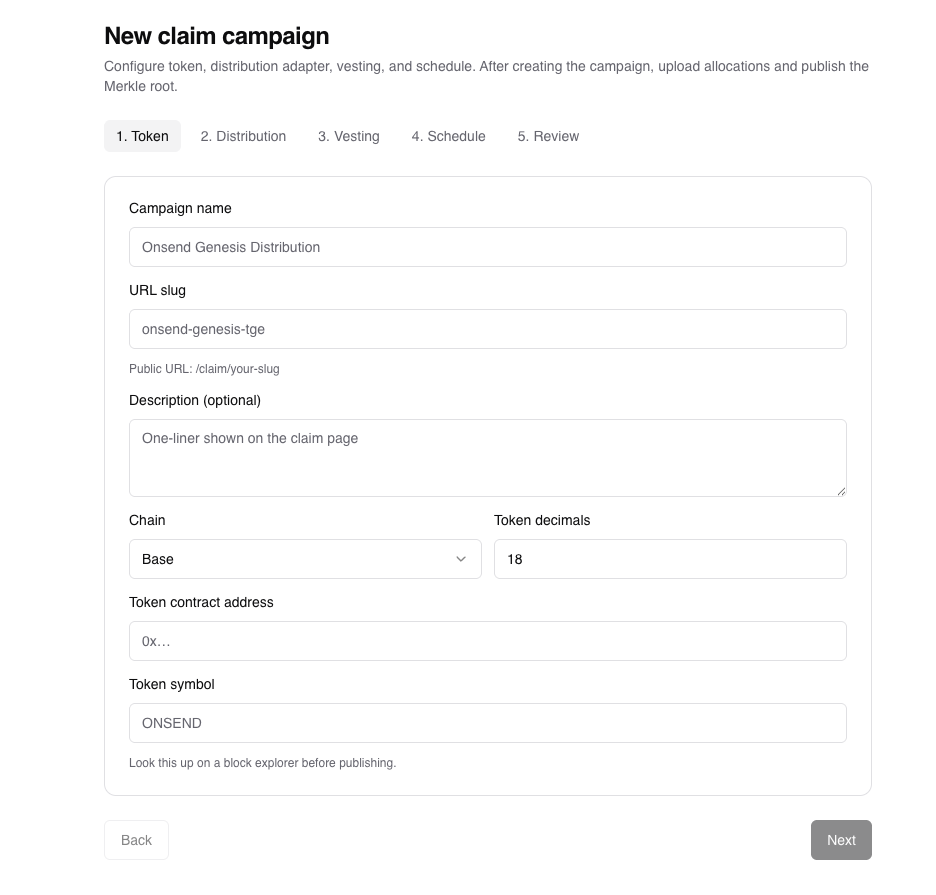
Open Claim Campaigns in the admin sidebar and click New campaign. The wizard walks five steps: Token, Distribution, Vesting, Schedule, Review.
| Step | What you set |
|---|---|
| Token | Name, URL slug (/claim/<slug>), chain (Ethereum or Base), token contract address, symbol, and decimals |
| Distribution | Distribution method (Merkle Airdrop) + your deployed distributor contract address |
| Vesting | Optional linear vesting (off by default) |
| Schedule | Optional claim-opens-at / claim-closes-at window |
| Review | Confirm and create; the campaign starts in DRAFT |
Token symbol & decimals are admin-typed
Onsend does not read the token's symbol or decimals from chain; you enter them yourself. Look them up on a block explorer before publishing: the decimals drive how display amounts convert to raw token units, so a wrong value silently mis-sizes every allocation.
Load allocations
Open the campaign and go to Allocations. There are two ways to add
recipients, both available only while the campaign is in DRAFT.
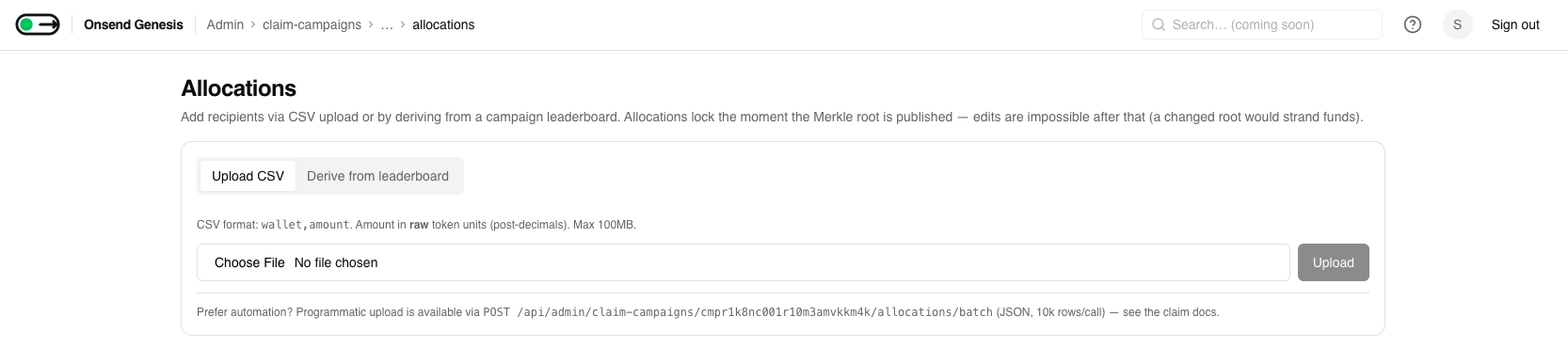
CSV upload. Provide a CSV with a header row and two columns, wallet and
amount:
- Header row required. Column names are case-insensitive (
wallet/Wallet/WALLET); extra columns are ignored. amountis in raw token units (post-decimals). For example,1token at 18 decimals is1000000000000000000, not1.- Lines starting with
#are treated as comments and skipped. - Upload cap is 100 MB. Rows that fail parsing or validation come back with line numbers; valid rows still insert.
Programmatic upload for large sets
For scripted uploads, POST /api/admin/claim-campaigns/<id>/allocations/batch
accepts JSON (up to 10,000 rows per call). Re-uploads are de-duplicated on
(campaign, wallet), so a row already present won't be clobbered. This route
uses your authenticated admin session. It is not part of the public v1
API — API keys (even write-scoped ones) cannot upload allocations, so
scripted uploads must authenticate with an admin session.
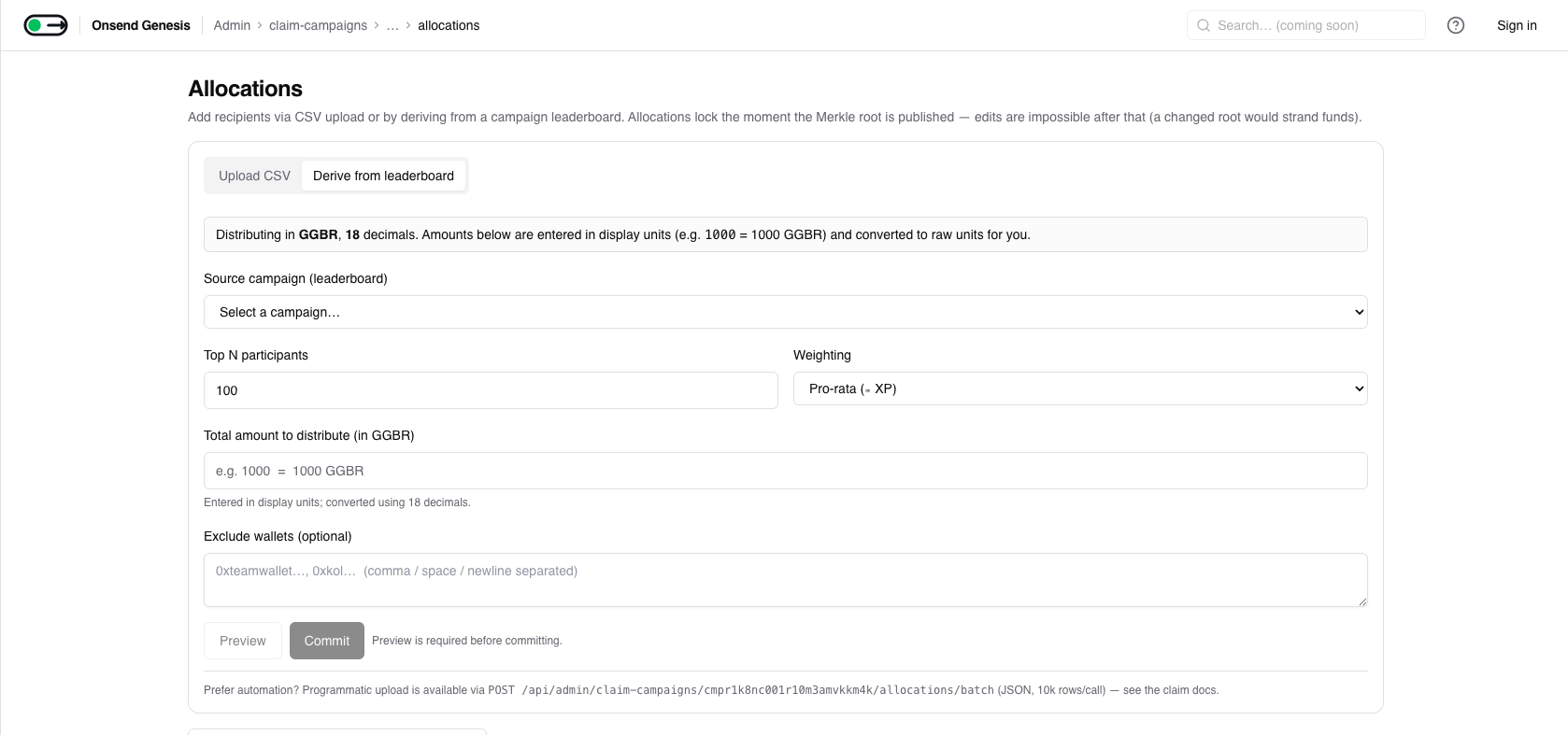
Derive from leaderboard. Instead of a file, generate allocations from an existing campaign's leaderboard.
| Field | What it does |
|---|---|
| Source campaign | The campaign whose leaderboard (participations) feeds the list |
| Top N participants | Cap the recipient count (1–100,000) |
| Total amount to distribute | Entered in display units, converted to raw using the token's decimals |
| Weighting | Pro-rata (∝ XP), Equal (even split), or Tiered (by tier weight) |
| Exclude wallets | Comma / space / newline-separated wallets to drop (team, KOLs), filtered before weighting |
You must Preview before you can Commit, and the preview is bound to the exact parameters it ran against: change any field and you have to re-preview. Any floor-division remainder is folded into the #1 (highest-XP) allocation so the full total distributes exactly.
Publish the Merkle root
Back on the campaign page, click Publish (build Merkle). Onsend hashes the
frozen allocation set into a Merkle root, stores the tree, and computes the total
allocated. The campaign moves DRAFT → ALLOCATIONS_LOADED.

Allocations lock here, permanently
The moment the root is built the campaign leaves DRAFT and allocations are
locked. There is no edit path back. If you discover a mistake after
publishing, your only option is to Close the campaign and start a new one.
A changed allocation set would produce a different root that no longer
matches your deployed contract, stranding the funds.
Deploy your distributor contract
Onsend does not deploy contracts. Take the published Merkle root and deploy
the reference distributor yourself. The Solidity ships at
docs/contracts/merkle-airdrop.sol and works with Remix, Foundry, or Hardhat.
The constructor takes the token address and the Merkle root; fund the contract
with enough tokens to cover the total allocated.
Copy the deployed contract address into the campaign's Distributor contract field (you set this during the wizard, so confirm it matches what you actually deployed).
Go live
Once the contract is deployed and funded, click Go live. The campaign moves
ALLOCATIONS_LOADED → LIVE and the public claim page starts accepting claims.
Share the Public claim link from the campaign header with your community.
You can Pause a live campaign (and Resume it) at any time, and Close it when the drop is finished. Closing preserves all allocations and receipts for auditing.
The campaign lifecycle
| Status | Meaning | Can edit allocations? |
|---|---|---|
DRAFT | Created; allocations being loaded. Not visible to claimers. | Yes |
ALLOCATIONS_LOADED | Merkle root built and frozen; you deploy the contract. | No (root is committed) |
LIVE | Claim page is open; eligible wallets can claim. | No |
PAUSED | Temporarily halted; resume returns it to LIVE. | No |
CLOSED | Finished. No further claims; allocations/receipts retained for audit. | No |
Allowed transitions: DRAFT → ALLOCATIONS_LOADED → LIVE, then LIVE ⇄ PAUSED,
and LIVE / PAUSED / ALLOCATIONS_LOADED → CLOSED. Closing is terminal.
Why the lock is a hard boundary
The lock is at ALLOCATIONS_LOADED, not at LIVE. The Merkle root is
committed the instant you build it (that's the value you hand to your
contract), so editing has to be blocked from that point on, well before the
campaign ever opens for claims.
How end users claim
Claimers visit /claim/<slug> on your campaign site.

Connect wallet & check eligibility
The user connects their wallet. Onsend looks up their allocation; if the wallet isn't in the list they see a clear "not eligible" message. Eligible wallets see the exact amount they can claim.
Claim
On Claim, the server runs its gates (below), returns the Merkle proof and
encoded transaction, and the user signs it in their wallet. A PENDING receipt
is created and advanced to TX_SUBMITTED once the tx hash is recorded.
Confirmation
A background worker watches the chain and flips the receipt to CONFIRMED (with
the on-chain amount and block number) or FAILED. The page polls and shows the
result with a block-explorer link.
Gates that run before a claim
Every claim runs server-side checks before a proof is ever issued:
- Eligibility: the wallet must have an allocation in this campaign, and the claim window (if set) must be open.
- Single active claim: a wallet with an existing pending, submitted, or confirmed receipt can't start another.
- OFAC screening: sanctioned wallets are screened against the OFAC SDN
list. A hit creates a
BLOCKEDreceipt and the user sees a deliberately vague message ("Verification failed. Please contact support."). The page never reveals whether the block was OFAC or sybil. - Anti-sybil gate: at claim time the sybil gate blocks (it does not
hold-and-release, because on-chain claims are irreversible). A blocked wallet
gets a
BLOCKEDreceipt, a review item is queued for admins, and the user sees "This wallet is under review and cannot claim at this time."
Sybil at claim time blocks: it never holds
Elsewhere on the platform a borderline-sybil user can earn rewards that are held for admin review. Claims can't work that way: once tokens leave the contract there's no clawback, so the gate collapses to a hard block at claim time. Blocked wallets surface in the sybil review queue.
Vesting
Vesting is linear and optional. When enabled, you set a start time and a duration; allocations unlock evenly across that window.
Single-shot claims only
This release supports a single claim per wallet: the on-chain reference contract claims the entire allocation in one transaction. With vesting on, a partially-vested wallet can't claim a slice; they wait until fully vested, then claim the whole amount. The claim page shows the "fully vested at" timestamp so users know when to return. Partial / streaming vesting lands in a future release via vesting-aware adapters.
Tips
- Get decimals right before you publish. They're admin-typed and drive every amount conversion, so verify on a block explorer.
- Deploy and fund the contract with the published root, then go live. A root mismatch or an under-funded contract surfaces as failed claims.
- Exclude team and KOL wallets when deriving from a leaderboard so they don't dilute the community drop.
- Close, don't edit, to fix a mistake. Past
DRAFTthere's no allocation edit path, so close the campaign and publish a fresh one.